
In today’s fast-paced digital world, Instagram has become more than just a social media platform—it’s a hub for connecting with friends, sharing memories, and even building a business. However, constant notifications, privacy concerns, or the need for a mental break often lead users to wonder how to deactivate Instagram.
Whether you’re looking for a temporary escape or a permanent exit, understanding the process thoroughly ensures you can manage your online presence without losing important data. In this complete guide, we cover everything from temporarily deactivating Instagram, deleting your account, troubleshooting issues and tips for 2025.
Understanding Instagram Deactivation vs. Deletion
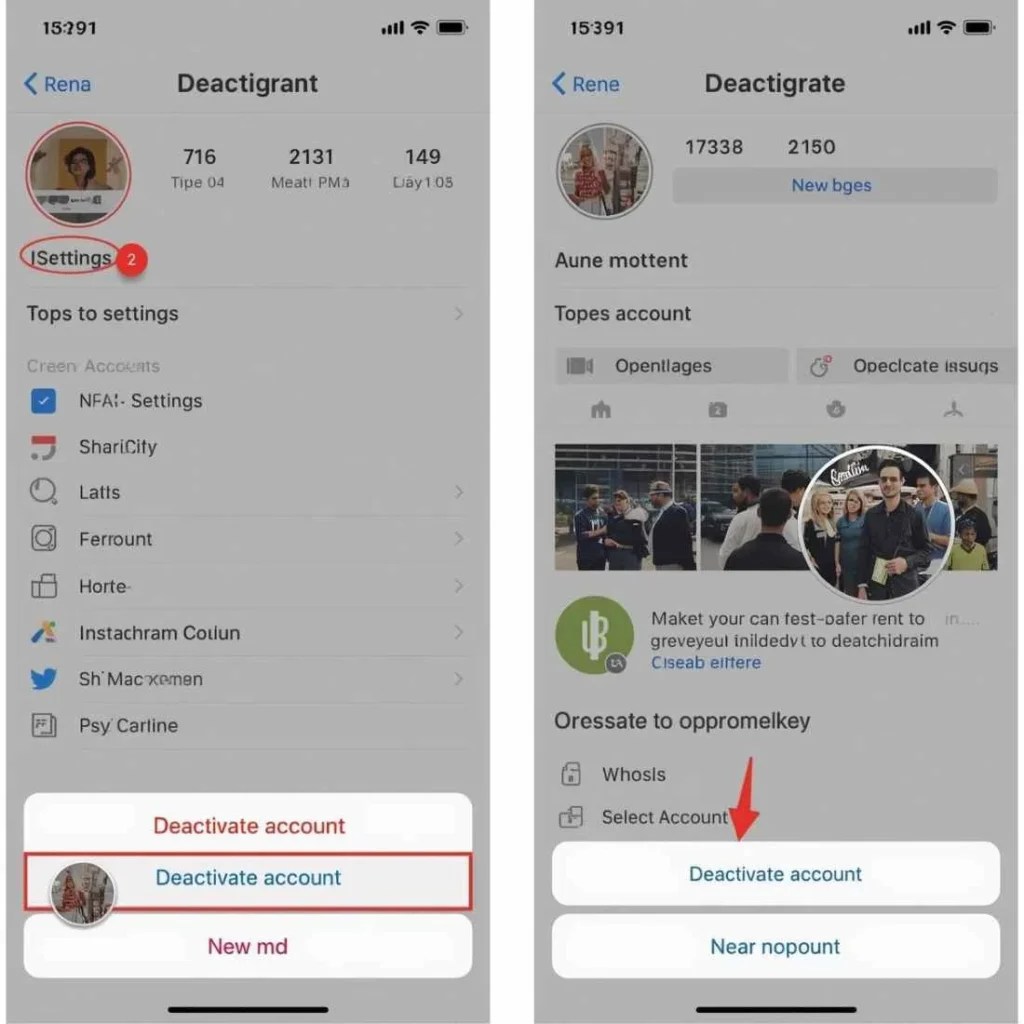
Before you take any action, it’s crucial to understand the difference:
- Temporarily Deactivate Instagram: Hides your profile, photos, comments, and likes from other users. It’s reversible—you can log back in anytime to reactivate. Users can temporarily deactivate Instagram on iPhone, Android, or PC once a week.
- Delete Instagram Account: Permanently erases your profile, photos, comments, and all data after 30 days. You can cancel the deletion within the first 30 days by logging back in.
Knowing which option fits your needs is key to preventing unwanted data loss or accidental permanent deletion.
How to Temporarily Deactivate Instagram
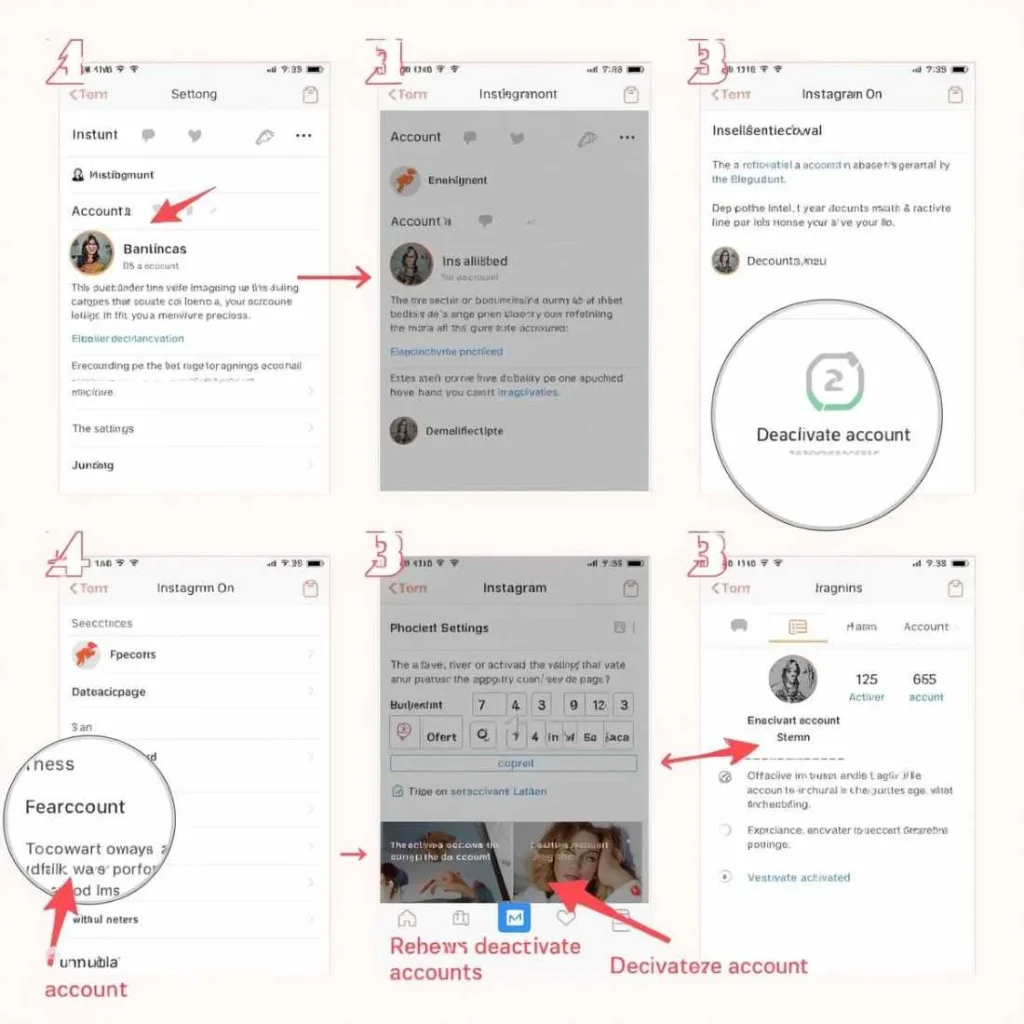
On Mobile (Android & iOS)
If you want to take a short break, follow these steps to temporarily deactivate Instagram on iPhone or Android:
- Open the Instagram App on your device.
- Tap your profile icon at the bottom-right corner.
- Tap the three horizontal lines (menu) → Settings and privacy.
- Go to Accounts Center → Personal details.
- Tap Account ownership and control → Deactivation or deletion.
- Choose Deactivate account and follow the on-screen prompts.
Pro Tip: You can reactivate your account anytime by simply logging back in.
On Desktop (PC or Mac)
- Go to Instagram.com and log in.
- Click your profile picture → Settings → Accounts Center.
- Go to Personal details → Account ownership and control → Deactivation or deletion.
- Select Deactivate account and confirm.
Tip for PC Users: Desktop users may find it easier to follow these steps with multiple tabs for Instagram’s help center for guidance.
Visual Description (Screenshots)
- Step 1: Profile icon bottom right → menu button.
- Step 2: Settings → Accounts Center → Personal details.
- Step 3: Account ownership → Deactivation or deletion → Confirm.
Adding screenshots at each step helps users follow along without confusion.
How to Permanently Delete Your Instagram Account
For those who have decided to exit Instagram completely, here’s how to delete Instagram account permanently:
On Mobile
- Open Instagram → Profile → Menu → Settings and privacy.
- Navigate to Accounts Center → Personal details → Account ownership and control → Deactivation or deletion.
- Choose Delete account and confirm.
On Desktop
- Log into Instagram on a browser.
- Go to Settings → Accounts Center → Personal details → Account ownership and control → Deactivation or deletion.
- Select Delete account and follow the prompts.
Important: Deletion is permanent after 30 days. Logging in during this period cancels deletion.
2025 Instagram Updates You Should Know
- New Account Privacy Options: Instagram now allows more granular control over who can see stories, posts, and archived content.
- Scheduled Deactivation: In 2025, Instagram may introduce options to schedule temporary deactivation in advance.
- Enhanced Data Download: Instagram now lets users download all media in a more organized format before deletion.
These updates make managing your account easier while protecting privacy.
Alternatives to Deactivation or Deletion
Not ready to deactivate or delete? Consider:
- Switch to a Private Account: Only approved followers can see your posts.
- Limit Notifications: Turn off notifications for likes, comments, or stories.
- Take a Break Without Deactivation: Log out for a set period to disconnect mentally.
- Content Archiving: Archive old posts instead of deleting your account.
These options reduce distractions while keeping your account intact.
Troubleshooting Common Issues
- Can’t Deactivate: Clear cache or update the app.
- Login Errors During Deactivation: Reset password and try again.
- Deactivation Button Missing: Ensure you’re following the mobile or desktop steps correctly.
- Error Messages: Try a different device or contact Instagram support.
Pro Tip: Instagram updates may move menu options, so always check the latest help guides if you can’t find a setting.
Frequently Asked Questions (FAQs)
Q1: Can I reactivate Instagram after deletion?
- No. Once deleted permanently after 30 days, your account cannot be restored.
Q2: Will my messages disappear if I deactivate Instagram?
- No. Messages are preserved and visible to other users even during deactivation.
Q3: How often can I temporarily deactivate Instagram?
- Once a week.
Q4: Can I deactivate Instagram on one device only?
- No. Deactivation applies to all devices until you log back in.
Q5: Will followers be notified if I deactivate or delete?
- No. Followers are not notified.
Tips for Managing Your Instagram Account
- Back Up Your Data: Before deletion, save photos and videos.
- Use Account Ownership Controls: Manage deactivation or deletion safely.
- Review Privacy Settings Regularly: Control who sees your content.
- Set Time Limits: Use Instagram’s “Your Activity” feature to monitor usage.
Benefits of Deactivation or Deletion
- Mental Health Improvement: Reduce stress and digital fatigue.
- Privacy Protection: Avoid data misuse.
- Focus Boost: More time for work, studies, or hobbies.
Conclusion
Knowing how to deactivate Instagram or delete Instagram account ensures you take control of your online presence. Whether temporary or permanent, following the steps above, troubleshooting issues, and exploring alternatives gives you peace of mind. In 2025, Instagram provides more tools to manage privacy, data, and notifications—so you can take a break without losing control.