Capturing your screen on a Chromebook is essential for work, school, and personal use. Whether it’s saving a meme, documenting a project, or troubleshooting an issue, knowing how to screenshot on Chromebook efficiently can save you time and effort.
In this guide, we’ll cover all possible methods, shortcuts, tools, tips, and advanced techniques, so you become a Chromebook screenshot pro.
1. Why You Should Take Screenshots on Chromebook
Screenshots are not just for fun—they are vital tools for productivity:
- Work: Save charts, graphs, or emails for reference.
- Education: Capture slides, assignments, or study material.
- Tech Support: Show issues to IT or online communities.
- Entertainment: Save memes, screenshots from videos, or game highlights.
Learning how to screenshot on Chromebook ensures efficiency and easy sharing, making your digital life smoother.
2. Chromebook Keyboard Shortcuts for Screenshots
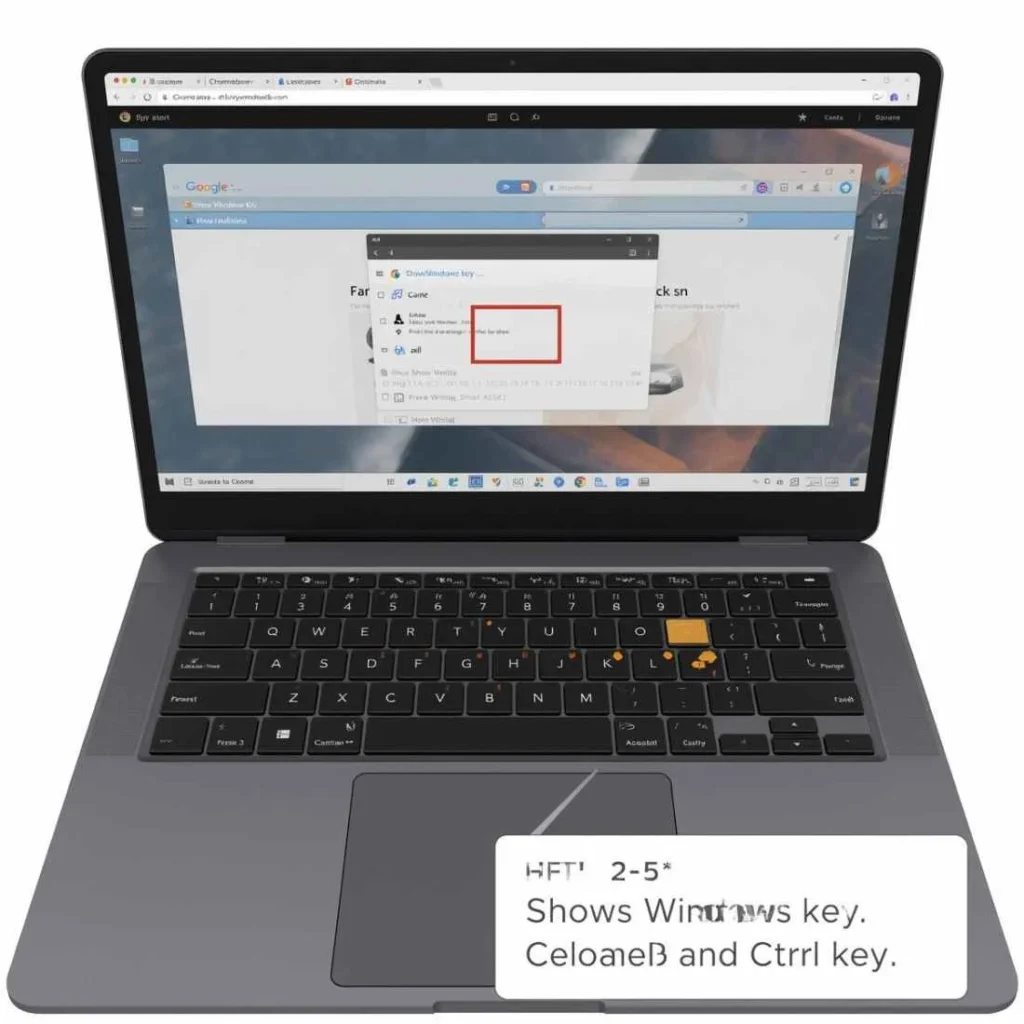
Chromebooks have unique keyboard shortcuts. Mastering them is crucial.
Full-Screen Screenshot
- Press
Ctrl + Show Windows key (F5). - The screen flashes briefly—your screenshot is saved in the Downloads folder.
Partial Screenshot
- Press
Ctrl + Shift + Show Windows key. - Cursor turns into a crosshair.
- Click and drag to select the area to capture.
- Release to save in Downloads.
Window Screenshot
- Press
Ctrl + Alt + Show Windows key. - Click the window you want to capture.
- Screenshot automatically saves.
Tip: The Show Windows key looks like a rectangle with two lines on the right.
3. Using the Stylus or Touchscreen
If your Chromebook supports a stylus or touchscreen, you can capture screenshots without using the keyboard:
- Tap the Stylus icon in the bottom-right corner.
- Select Capture Screen or Capture Partial Screen.
- Follow on-screen instructions.
This method is great for annotating screenshots immediately.
4. Screenshot from Quick Settings Menu

Chromebook’s Quick Settings makes it easy to capture the screen:
- Click your profile picture (bottom-right corner).
- Open Quick Settings → Screen Capture.
- Select Full, Partial, or Window capture.
- Click Capture.
Ideal for touchscreen users or when you don’t want to memorize shortcuts.
5. Chromebook Screenshot Extensions and Apps
For advanced editing, annotation, or cloud saving, try these tools:
Lightshot
- Simple, free screenshot tool with instant editing.
- Ideal for highlighting or adding text.
Nimbus Screenshot & Screen Video Recorder
- Capture web pages, windows, or specific areas.
- Can record screen video and add annotations.
Awesome Screenshot
- Advanced editing options: blur sensitive info, add shapes, or save to cloud.
Using these tools is great for students, teachers, and content creators.
6. Editing and Annotating Your Screenshots
After capturing a screenshot, you may want to:
- Highlight important information
- Add text labels or arrows
- Blur or pixelate sensitive content
Apps to try:
- Canvas (pre-installed)
- Lightshot Editor
- Nimbus Capture
Annotation is essential for creating tutorials, presentations, or study materials.
7. Managing and Organizing Screenshots
Keeping your screenshots organized improves productivity:
- Folders in Google Drive: Separate personal, school, and work screenshots.
- Google Photos: Auto-upload for backup.
- Rename Files: Press
Ctrl + Ein Downloads for quick renaming. - Quick Access: Use Chromebook Shelf for frequently used images.
8. Chromebook Screenshot Troubleshooting
Screenshot Not Saving
- Check Downloads folder or default save location.
- If using SD cards, verify write permissions.
Keys Not Working
- Ensure keyboard layout matches device settings.
- Restart Chromebook if shortcuts fail.
App Restrictions
- Some apps block screenshots for copyright reasons (e.g., Netflix).
9. Chromebook Screenshot FAQ
Q1: Where do screenshots go?
A1: Downloads folder by default; can move to Google Drive.
Q2: Can I screenshot a locked screen?
A2: No, Chromebooks prevent screenshots on the lock screen.
Q3: How do I screenshot without a keyboard?
A3: Use Stylus or Quick Settings menu.
Q4: Can I capture streaming videos?
A4: Some apps block screenshots; screen recording is an alternative.
10. Advanced Screenshot Techniques
- Screen Recording with Audio:
Ctrl + Shift + Show Windows key→ Record. - Time-Delayed Screenshots: Extensions like Nimbus allow delayed captures.
- Batch Organization: Use consistent file naming and folders in Drive.
11. Productivity Tips for Chromebook Screenshots
- Combine screenshots in Google Docs for reports or guides.
- Annotate before sharing using extensions.
- Direct sharing: Send screenshots via Gmail, Slack, or WhatsApp Web.
These techniques are especially helpful for remote workers, teachers, and students.
12. Chromebook Screenshots for Different Models
- Tablet mode: Power + Volume Down = full-screen screenshot.
- Stylus users: Partial capture with annotation.
- Check manufacturer’s guide for model-specific variations.
13. Real-World Use Cases
- Students: Capture lecture slides or homework instructions.
- Professionals: Document meetings, emails, or reports.
- Tech Support: Show issues with screenshots instead of long explanations.
- Content Creators: Save memes, images, or video highlights for projects.
14. Conclusion
Knowing how to screenshot on Chromebook is simple once you understand the shortcuts, tools, and apps. Use keyboard shortcuts for speed, stylus/touchscreen for flexibility, and apps/extensions for advanced editing. Organize your screenshots, annotate for clarity, and integrate them into your workflow.
By mastering these techniques, you’ll save time, improve productivity, and make your digital life more organized and efficient.