Capturing your screen on a Windows computer is one of the most useful skills you can have. Whether you want to save an error message, create a tutorial, or share a funny moment, knowing how to take a screenshot on Windows is essential.
In this comprehensive guide, we’ll cover every possible method, provide tips for efficiency, explain tools like Snipping Tool Windows, Snip & Sketch Windows, and even explore advanced techniques for professionals and gamers.
By the end of this guide, you’ll be a screenshot pro—able to capture, edit, and share images in seconds.
Why Screenshots on Windows Are Important
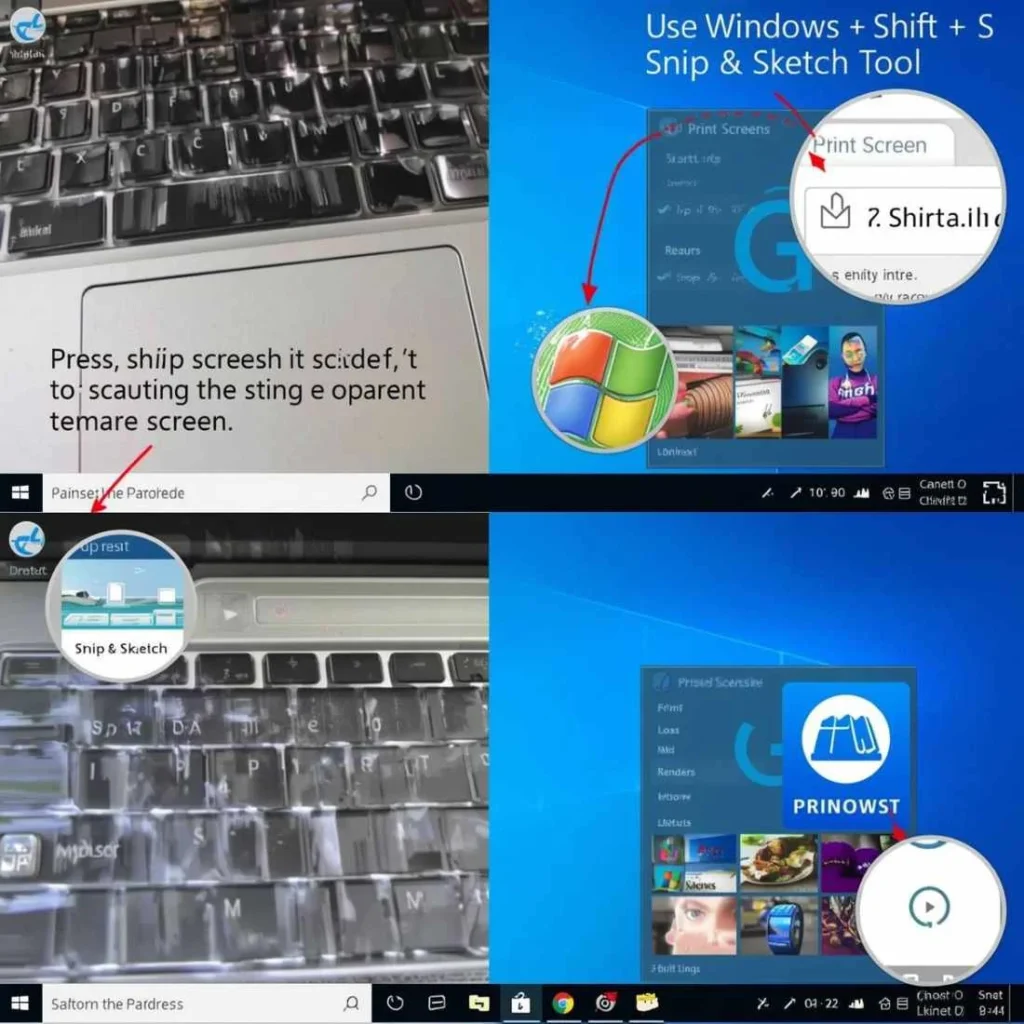
Screenshots are more than just pictures—they’re powerful tools for communication, productivity, and entertainment. Here’s why mastering Windows screenshot shortcuts is crucial:
- Work and Productivity – Capture error messages, spreadsheets, or reports to share with colleagues.
- Education – Save lecture slides, diagrams, or research for study purposes.
- Social Media – Snap chat messages, memes, or posts instantly.
- Gaming – Capture achievements, highlights, or bugs using Game Bar screenshot Windows.
- Technical Support – Screenshots provide clear evidence for IT support requests.
By learning multiple methods, you’ll always have the right tool for the task.
Quick Overview: Methods to Take a Screenshot on Windows
Here’s a snapshot of the most common ways to capture screenshots:
| Method | Shortcut / Tool | Pros | Cons |
|---|---|---|---|
| Full Screen | PrtScn | Simple, built-in | Must paste manually |
| Active Window | Alt + PrtScn | Captures only active window | Must paste manually |
| Auto Save Full Screen | Windows + PrtScn | Saves automatically | Less editing control |
| Snipping Tool Windows | Built-in app | Flexible, precise | Slightly slower |
| Snip & Sketch Windows | Windows + Shift + S | Annotate, flexible | Clipboard-based workflow |
| Game Bar Screenshot | Windows + Alt + PrtScn | Best for gamers | Must enable Game Bar |
| Third-Party Tools | Lightshot, Greenshot, ShareX | Extra features, automation | Requires installation |
Method 1: Using the Print Screen (PrtScn) Key
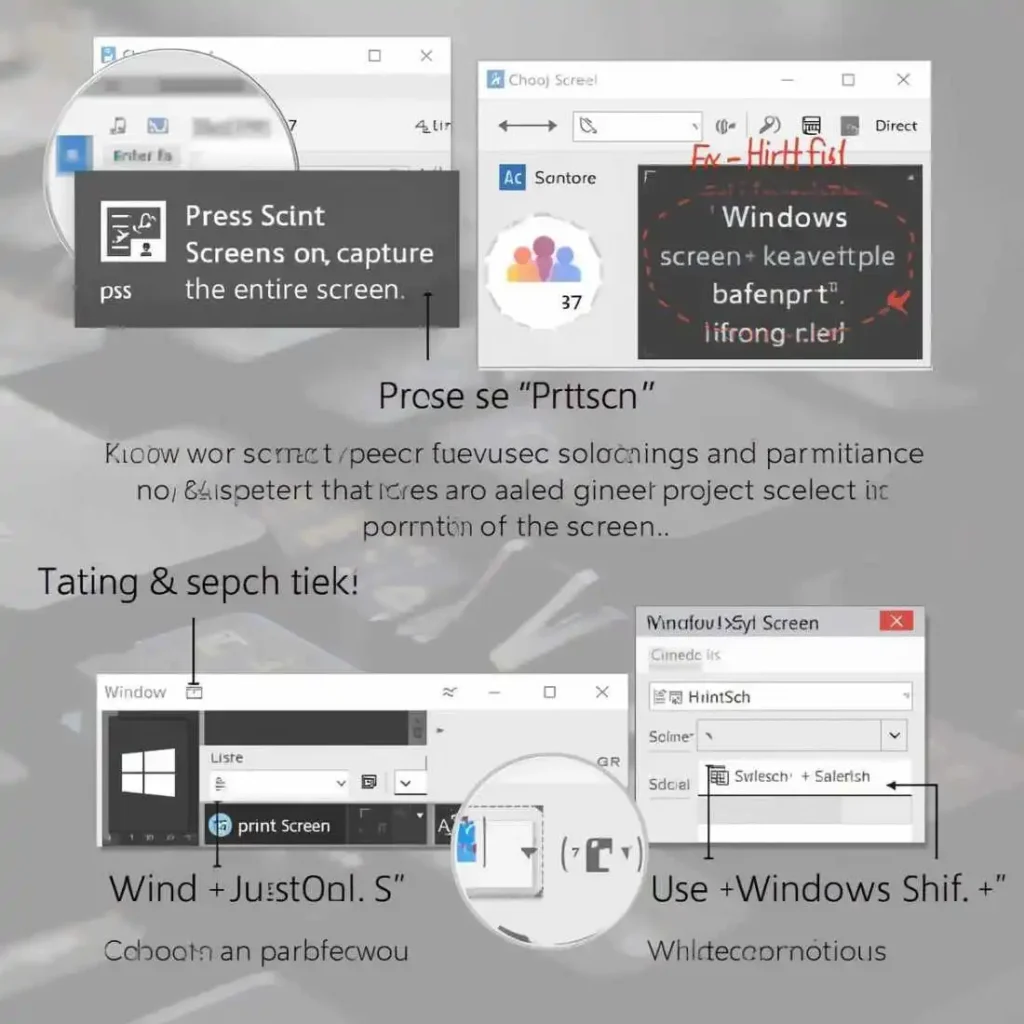
The Windows print screen key is the classic method and works on nearly all Windows devices.
Full-Screen Screenshot
- Press the
PrtScnkey. - The screenshot is copied to the clipboard.
- Open Paint, Photoshop, or Word.
- Press
Ctrl + Vto paste. - Save as PNG or JPEG.
Active Window Screenshot
- Press
Alt + PrtScn. - This captures only the currently active window.
- Paste it in your editor and save.
Pro Tip: This method is quick but doesn’t save automatically, so remember to paste and save each screenshot.
Method 2: Windows + Print Screen (Auto Save)
For convenience, Windows allows automatic saving of screenshots:
- Press
Windows Key + PrtScn. - The screen will dim briefly to confirm capture.
- Screenshots are saved in Pictures > Screenshots.
This method is perfect for frequent captures where manual pasting is inconvenient.
Method 3: Using Snipping Tool Windows
The Snipping Tool Windows app provides more control and precision.
Steps:
- Search for
Snipping Toolin the Start menu. - Click New to start a screenshot.
- Choose your mode:
- Free-form Snip: Draw any shape.
- Rectangular Snip: Capture a rectangle.
- Window Snip: Capture a specific window.
- Full-screen Snip: Capture the whole screen.
- Save or copy the screenshot.
Tip: Use Snipping Tool for tutorials, presentations, or when you need precision.
Method 4: Using Snip & Sketch Windows
Snip & Sketch Windows is the modern replacement for Snipping Tool and is ideal for annotation:
- Press
Windows + Shift + S. - The screen dims, and a small toolbar appears.
- Select a snip type: Rectangular, Freeform, Window, or Fullscreen.
- The screenshot is copied to the clipboard.
- Click the notification to annotate, highlight, or save.
This tool is perfect for professionals who need annotated screenshots for guides or work presentations.
Method 5: Game Bar Screenshot Windows
For gamers, Windows 10 and 11 provide the Game Bar:
- Press
Windows + G. - Click the camera icon or press
Windows + Alt + PrtScn. - Screenshots are saved automatically in Videos > Captures.
Use this for capturing gameplay highlights, reporting bugs, or sharing achievements.
Method 6: Third-Party Tools
Sometimes built-in tools aren’t enough. Here’s what works best:
- Lightshot: Easy-to-use, instant sharing.
- Greenshot: Advanced annotation and editing.
- ShareX: Automates screenshots, supports scrolling screenshots, and cloud uploads.
These tools enhance workflow and provide features beyond Windows screenshot shortcuts.
Advanced Screenshot Techniques
1. Scrolling Screenshots
Windows doesn’t natively capture scrolling pages, but tools like ShareX or browser extensions can capture an entire webpage.
2. Annotating Screenshots
Tools like Snip & Sketch Windows allow text, highlights, and arrows—perfect for tutorials, guides, or reports.
3. Automated Screenshots
ShareX can schedule screenshots, trigger captures on events, or even upload automatically to cloud storage.
Organizing Screenshots
- Create Folders: Keep screenshots organized by date or project.
- Naming Convention: Use descriptive names for easy retrieval.
- File Formats: PNG for quality, JPEG for smaller file size.
Common Troubleshooting
- PrtScn Not Working: Try
Fn + PrtScnor check keyboard settings. - Screenshots Not Saving: Use
Windows + PrtScnfor automatic saving. - Game Bar Not Opening: Enable in Settings > Gaming > Xbox Game Bar.
- Snipping Tool Crashing: Update Windows or reset the app.
FAQs About Screenshots on Windows
Q1: Can I take a screenshot of a menu?
Yes! Use Snip & Sketch’s delay function to capture dropdown menus.
Q2: Can I capture multiple screens?
Yes! Press Windows + PrtScn and it will capture all connected monitors.
Q3: Which method is best for tutorials?
Use Snip & Sketch Windows or Snipping Tool Windows for annotations and precision.
Q4: How do I take a scrolling screenshot?
Use third-party tools like ShareX or browser extensions.
Pro Tips for Perfect Screenshots
- Use keyboard shortcuts to save time.
- Annotate directly in Snip & Sketch for clarity.
- Organize by folders for easy access.
- Blur sensitive information before sharing.
- Use third-party apps for automation or advanced editing.
Conclusion
Mastering how to take a screenshot on Windows is easier than ever with built-in tools and shortcuts. From the simple PrtScn key to advanced methods like Snip & Sketch Windows, Game Bar screenshot Windows, and third-party tools, there’s a solution for everyone—students, professionals, gamers, or casual users.
By following this guide, you can capture, edit, and share your screenshots efficiently, making your Windows experience smoother, more productive, and more fun.